
Get started
Set up your KlockIN workspace or sign in to the one your organization already uses. KlockIN brings together attendance, employee requests, and payroll records, with additional modules available according to your role.
Sign in to your workspace
- Open the workspace address provided by your organization.
- Enter the account credentials your administrator gave you. On mobile, the sign-in screen starts with Employee ID and offers a username option.
- Check that the account and company shown in the app match the organization you intend to use. In the browser, select your company from the company menu if your account has access to more than one.
Ask your workspace administrator to confirm your sign-in method and workspace address if you cannot sign in. On a shared device, sign out when you finish.
Find your way around
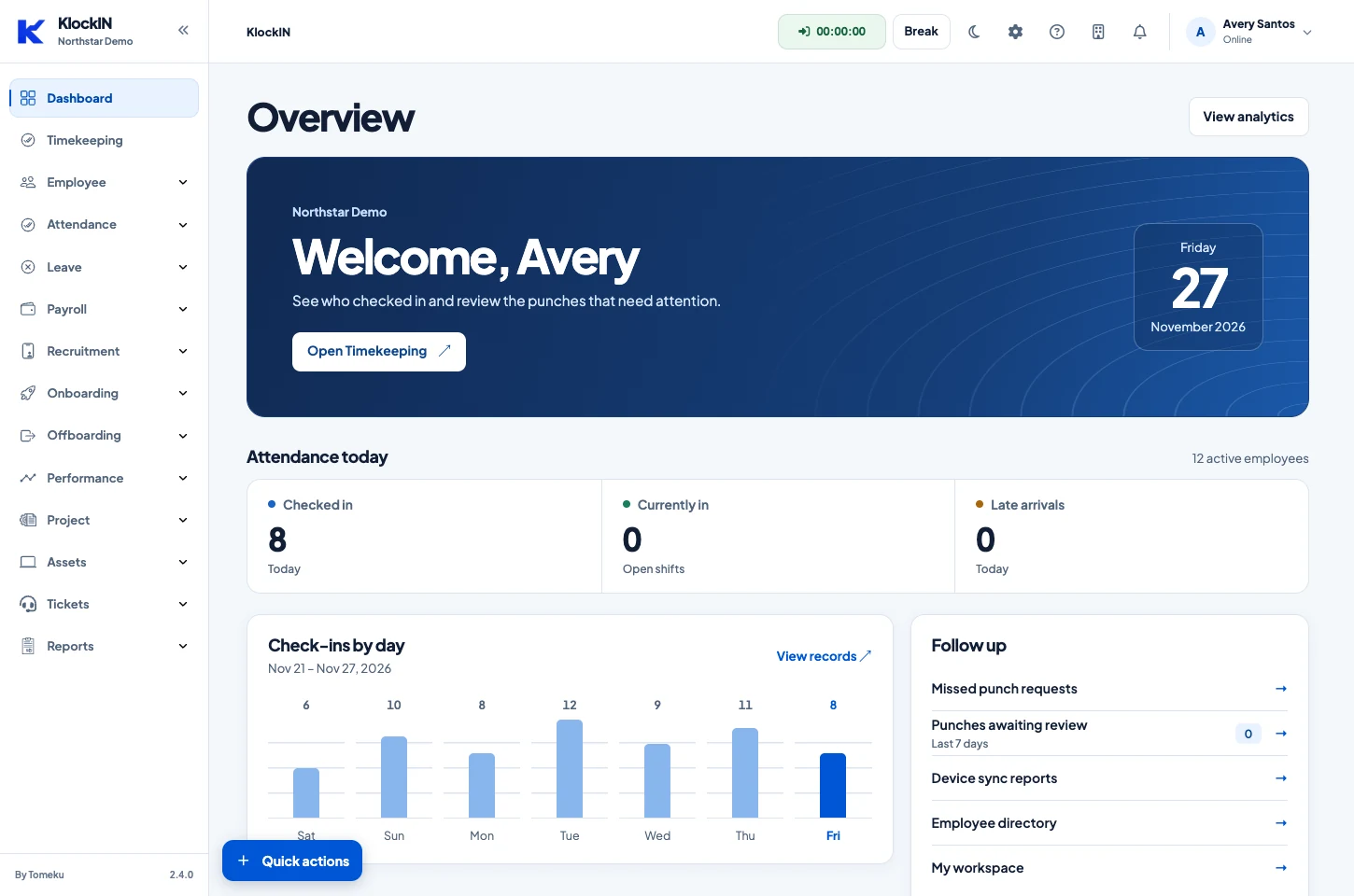
- Open Dashboard in the browser for your workspace overview.
- Open Timekeeping for attendance actions and your Daily Time Record (DTR).
- Open Quick actions for common tasks, such as creating a leave or attendance request. The available shortcuts depend on your access.
- Open Payroll → Payslips to find pay records you have permission to view.
In the mobile app, start on Today for your shift and available actions. Use Records for attendance and Requests for employee services. Account contains your account options.
Set up a new workspace
The workspace setup screen appears on a new installation. An authorized administrator unlocks setup, creates the administrator account, and enters the initial company, departments, and job positions. After signing in, complete the company information, configure work schedules, and assign employees to their company and reporting manager.