
Payroll and payslips
Open a payslip to review your earnings and deductions for a pay period. You can choose a PDF layout, preview the document, and save your preferred layout for future exports.
Find a payslip
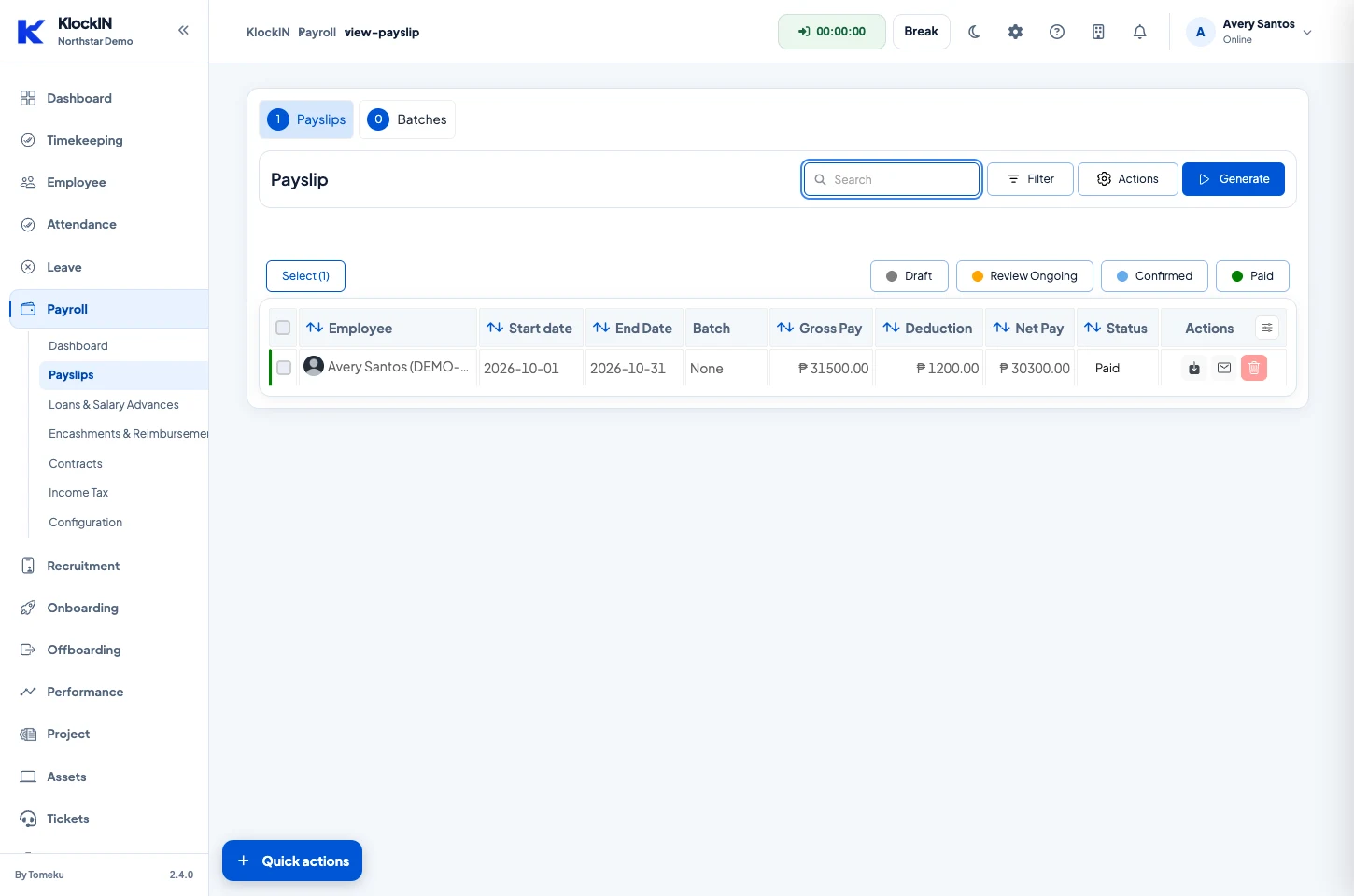
- Web — Open Payroll → Payslips, find the pay period you need, and select Preview and download payslip.
- Mobile — Open Requests → Payslips, or choose Payslips from the Today shortcuts when available. Select the record and tap Export payslip PDF.
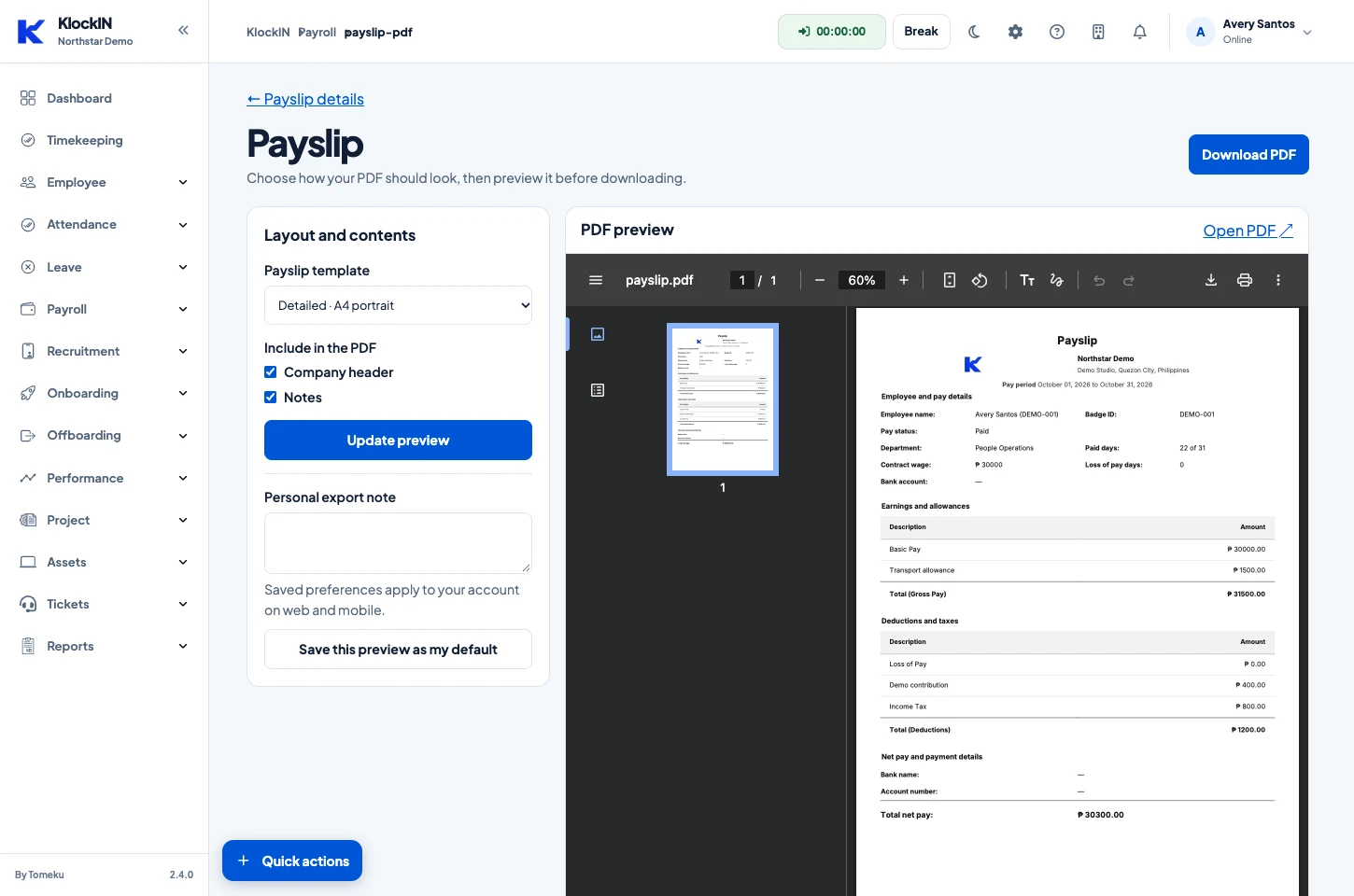
Review the employee and company details, pay period, earnings and allowances, deductions, gross pay, and net pay. If an amount looks wrong, contact your payroll team with the pay period and the line item you want reviewed.
Choose a PDF layout
| Template | When to use it |
|---|---|
| Detailed | Review a full-page breakdown in A4 portrait. |
| Compact | Use a tighter A4 portrait layout for the same pay period. |
| Wide (mobile Landscape) | Review or print horizontally on an A4 page. |
Set whether to include company details or notes. Choose Save this preview as my default on the web or Save as default on mobile to reuse your preferences across both with the same account. Save a personal export note before refreshing the preview to see it in the PDF.
Select Update preview on the web or Preview PDF on mobile to inspect the layout and amounts. Select Download PDF on the web. On mobile, use the preview’s download or share control and choose a destination available on your device.
Watch the payslip preview walkthrough.
Prepare a payroll batch
With payroll permissions, open Payroll → Payslips → Batches and select Generate to start a payroll batch. Choose the appropriate pay period and employees. During Review & Regularize, check the exceptions shown for the selected employees and resolve any attendance or contract records that need attention. Review the batch totals and affected employees before Generate. Confirm the resulting payslips have the intended pay period and review their status in Payroll → Payslips.