Timekeeping
Use KlockIN to record a shift, track break time, review your Daily Time Record (DTR), and request a correction when you miss a check-in or check-out.
Check in and check out on the web
- Open Timekeeping and select Check In or Check Out for your current shift.
- Allow camera and location access when your browser asks.
- Select Take selfie. Review the image and detected location before submitting. If a street address is unavailable, the preview can show the GPS coordinates and a map link.
- Select Confirm check in or Confirm check out, then confirm the shift state has updated. If the shift state still looks wrong after refreshing, check your day record before trying again.
If access is blocked, open the browser’s permissions for your workspace and allow camera and location. Try again with the page open. Keep your organization’s location requirements in mind when clocking in or out.
Watch the check-in and check-out walkthrough.
Start and end a break
While clocked in, open Break in the web header or Break time on Today in the app. Select Start break when you step away and End break when you return. The break display tracks your allowance, time used, and time remaining. Check the state when you return to the app so that you can confirm the break ended.
Your company sets the break allowance. Ask your administrator to check your company’s attendance settings if the allowance looks different from your work policy.
Report a missed punch
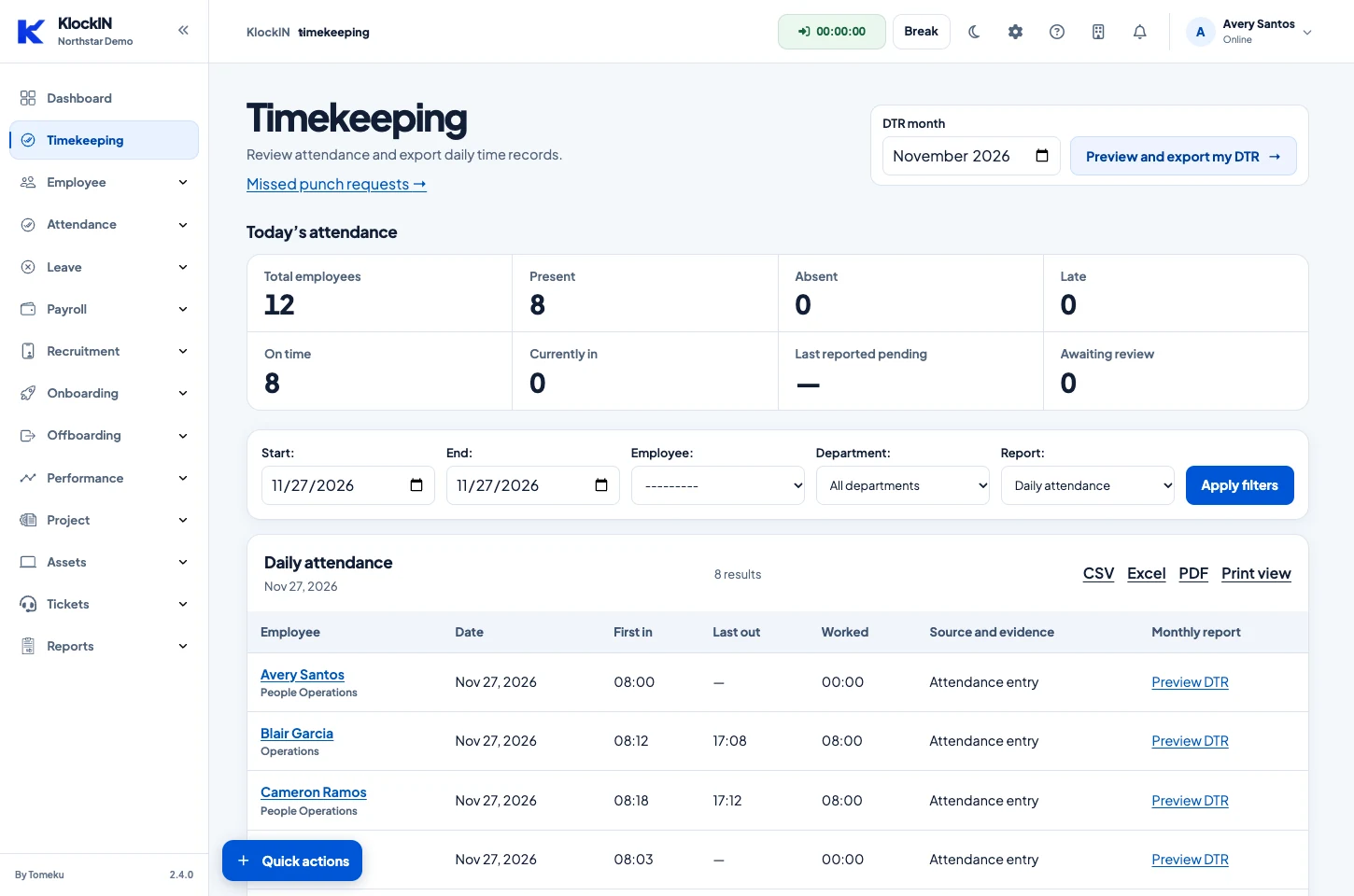
- On the web, open Timekeeping and choose Missed punch requests. On mobile, choose Records → Report missed punch or Requests → New request → Missed punch.
- Choose the work date. Enter the actual check-in time, check-out time, or both, depending on which events you missed.
- For a shift that ended after midnight, enter the next day as the check-out date on the web or enable Clock-out was the next day on mobile.
- Provide a short reason. Select Send for approval on the web or Submit request on mobile. Your reporting manager reviews the correction. Return to your request list to see its status.
If KlockIN cannot route the request, ask your administrator to verify that your employee record has the right reporting manager.
Watch the missed-punch walkthrough.
Review a team request
If you have approval access, open Missed punch requests → Team approvals on the web or People → Approvals on mobile. Confirm the work date, requested times, reason, and current attendance record. Choose Approve to apply the correction or Reject to decline it.
Preview and export your DTR
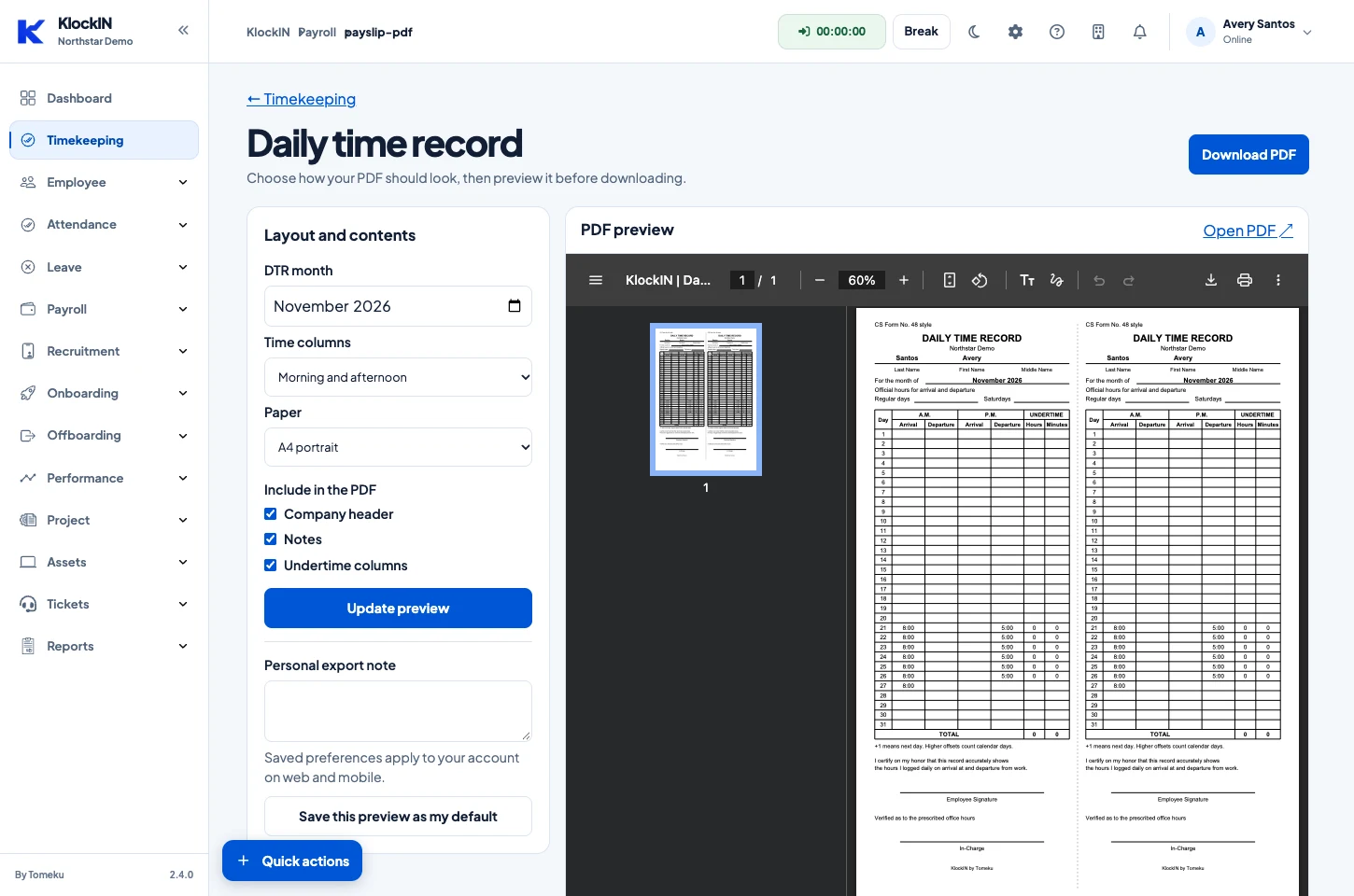
On the web, select a month in Timekeeping and choose Preview and export my DTR. On mobile, change the month in Records and choose Export DTR. Use Morning and afternoon (mobile AM / PM) for separate time columns or First in and last out (mobile First in / Last out) for a daily summary. Choose A4 portrait or landscape, then select the options available for the company header, notes, and undertime columns.
Refresh the PDF with Update preview on the web or Preview PDF on mobile. Verify the month, dates, and time columns before downloading. Save the layout as your default if you want to reuse it. Saved preferences follow the same account between web and mobile. The export settings control the PDF layout. For an incorrect punch, use the missed-punch request workflow.